
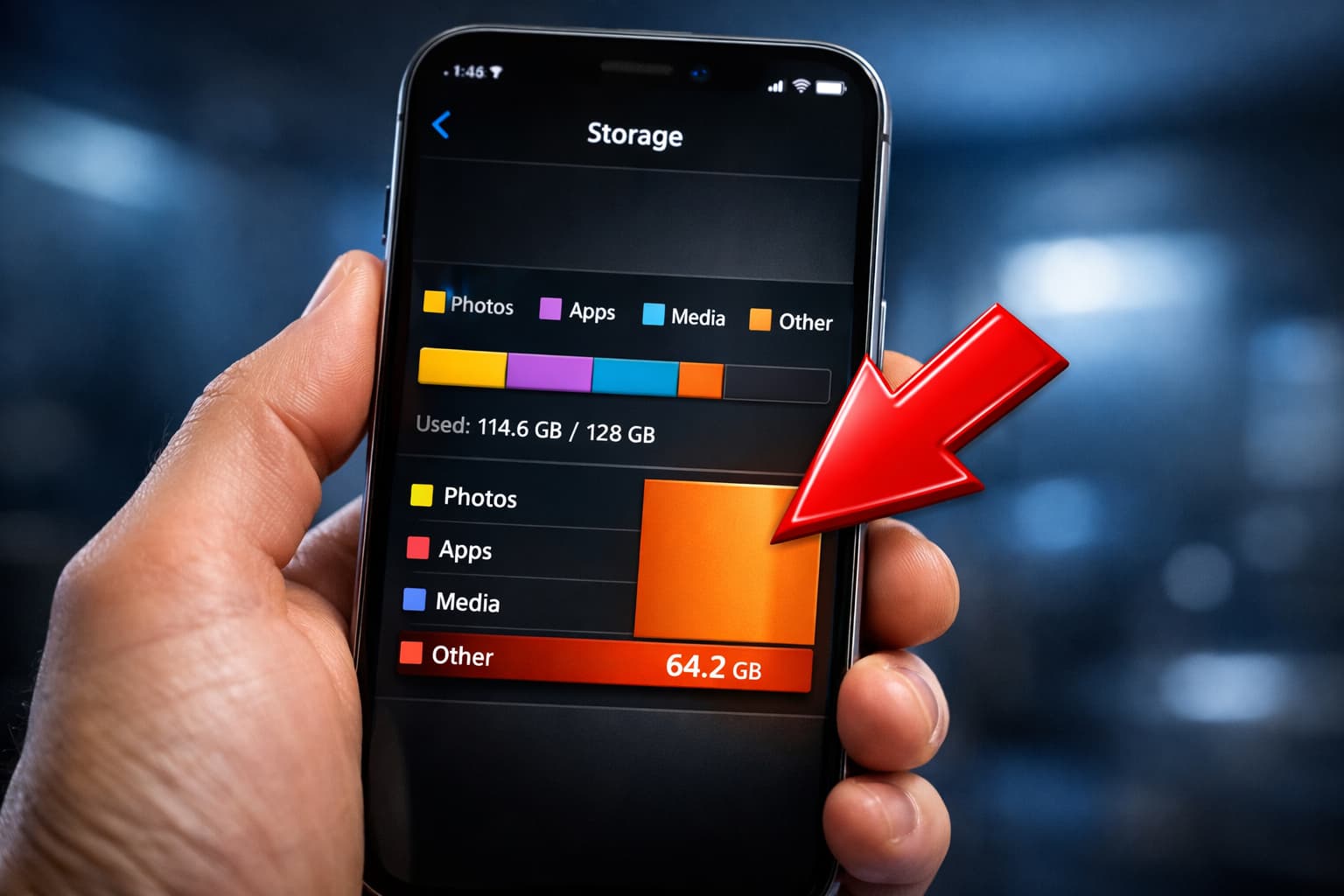
Many Android users are confused when they open storage settings and see “Other” or “System data” taking up a huge amount of space. Even after deleting photos, videos, and apps, storage still shows almost full because “Other” keeps growing.
I personally faced this issue when my phone showed more than 12GB occupied by “Other” storage. After checking app data, cache, and hidden files properly, I was able to reduce it significantly without resetting the phone.
In this article, I’ll explain what “Other” storage actually is and share real fixes that work.
What Is “Other” Storage on Android?
“Other” storage includes:
- App cache files
- Temporary system files
- App data (not media)
- Hidden folders
- Logs and residual files
Android groups many files under “Other,” which is why it grows silently.
Why “Other” Storage Keeps Increasing
1. App Cache Builds Up Over Time
Apps like Chrome, Instagram, YouTube, and Facebook store large cache files.
2. Messaging Apps Store Hidden Media
WhatsApp, Telegram, and similar apps store:
- Thumbnails
- Duplicate media
- Backup files
3. System Logs and Temporary Files
System files grow after updates and long usage.
4. Downloaded APKs and ZIP Files
Old downloads remain unnoticed.
5. App Residual Files After Uninstall
Some apps leave data behind even after removal.
Fixes That Actually Work
Method 1: Clear App Cache (Safest Fix)
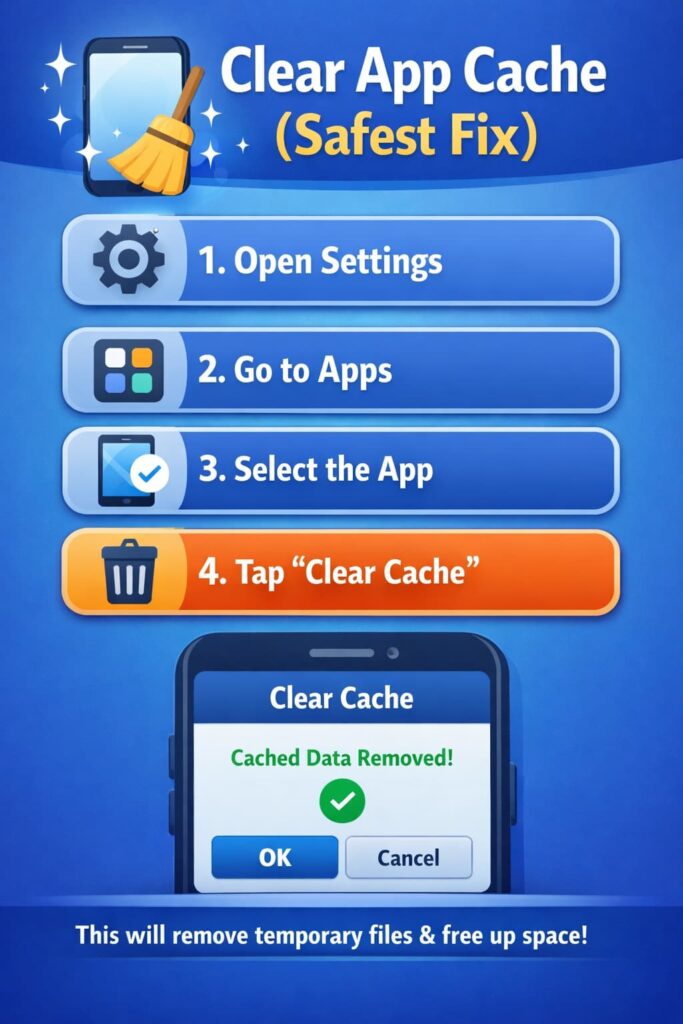
This was the biggest fix for me.
Steps:
- Go to Settings → Apps
- Open heavy apps one by one
- Tap Storage
- Clear Cache (not data)
This alone can reduce “Other” storage by several GB.
Method 2: Clean WhatsApp / Messaging App Storage
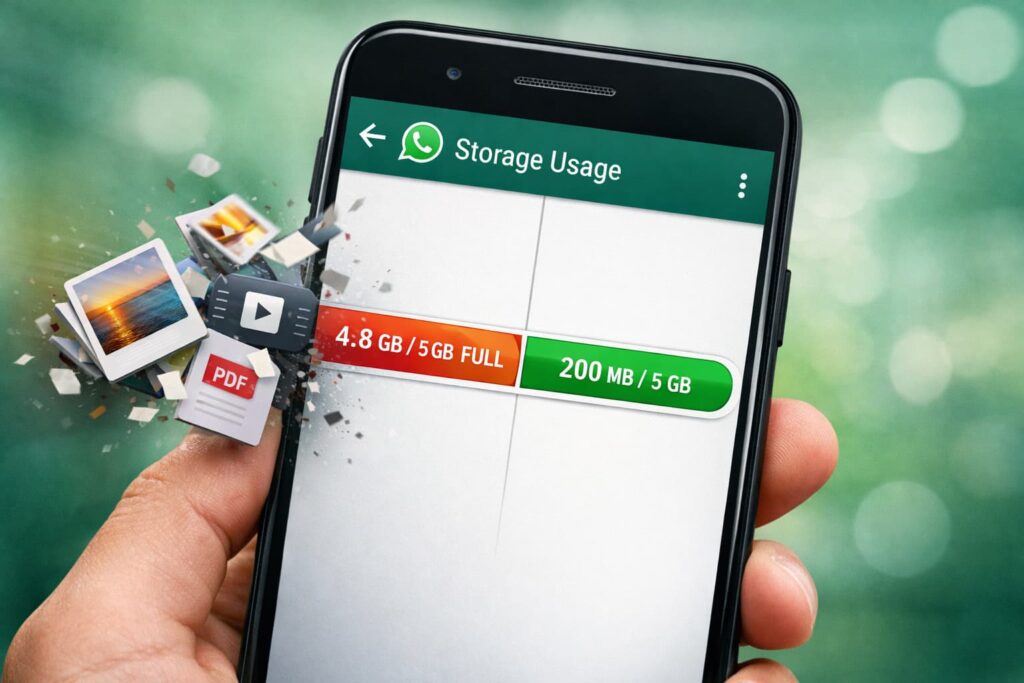
Messaging apps are major contributors.
Steps (WhatsApp):
- Open WhatsApp → Settings → Storage and data
- Tap Manage storage
- Delete large videos and forwarded files
Repeat for other messaging apps.
Method 3: Check Downloads and Hidden Folders
Many users forget this.
What to do:
- Open File Manager
- Check Downloads
- Look for
.apk,.zip,.logfiles - Delete unused files
Method 4: Use Built-in Storage Cleaner
Most phones include a safe cleaner tool.
- Go to Settings → Storage
- Use built-in Cleaner
- Avoid third-party cleaner apps
Built-in tools are safer and effective.
Method 5: Restart Phone After Cleaning
Restarting refreshes storage calculation.
After cleaning:
- Restart phone
- Check storage again
This updates the “Other” category correctly.
Method 6: Clear Browser Data Carefully
Browsers store large temporary files.
Steps:
- Open Chrome
- Go to Settings → Privacy
- Clear cached images/files
- Avoid clearing saved passwords
Method 7: Reset App Preferences (Safe Option)
This resets app permissions and services.
- Go to Settings → Apps
- Tap Reset app preferences
- Restart phone
This does not delete personal data.
Why “Other” Storage Can’t Be Completely Removed
Some system files are essential:
- Android OS files
- App runtime files
- Temporary system cache
So “Other” will never be zero, but it can be reduced.
What You Should Avoid
- Using aggressive cleaner apps
- Deleting system folders manually
- Clearing app data unnecessarily
- Factory reset without backup
These can cause data loss.
FAQs
Is “Other” storage harmful?
No, but excessive size affects performance.
Can SD card reduce “Other” storage?
Only partially, app data stays internal.
Does factory reset remove “Other” storage?
Yes, but it’s rarely necessary.
Should I use cleaner apps?
No, manual cleaning is safer.
Final Thoughts
If “Other” storage is taking too much space, the cause is usually app cache, hidden media, and temporary files—not your personal data.
From my experience, clearing app cache and messaging app storage reduced “Other” storage instantly. With regular cleaning, you can keep storage under control without resetting your phone.

Vaishnav Singh is the founder and primary author of TechHary.com. Based in Mumbai, he brings hands-on professional experience to his writing, having worked extensively as a Windows expert within the IT industry. His practical background in solving complex technical issues fuels his passion for creating clear, helpful, and relevant content. At TechHary.com, Vaishnav dedicates himself to publishing in-depth articles, guides, and insights aimed at demystifying technology for enthusiasts and professionals alike. His mission is to build a trusted resource where readers can find reliable information to navigate the ever-evolving tech landscape.