
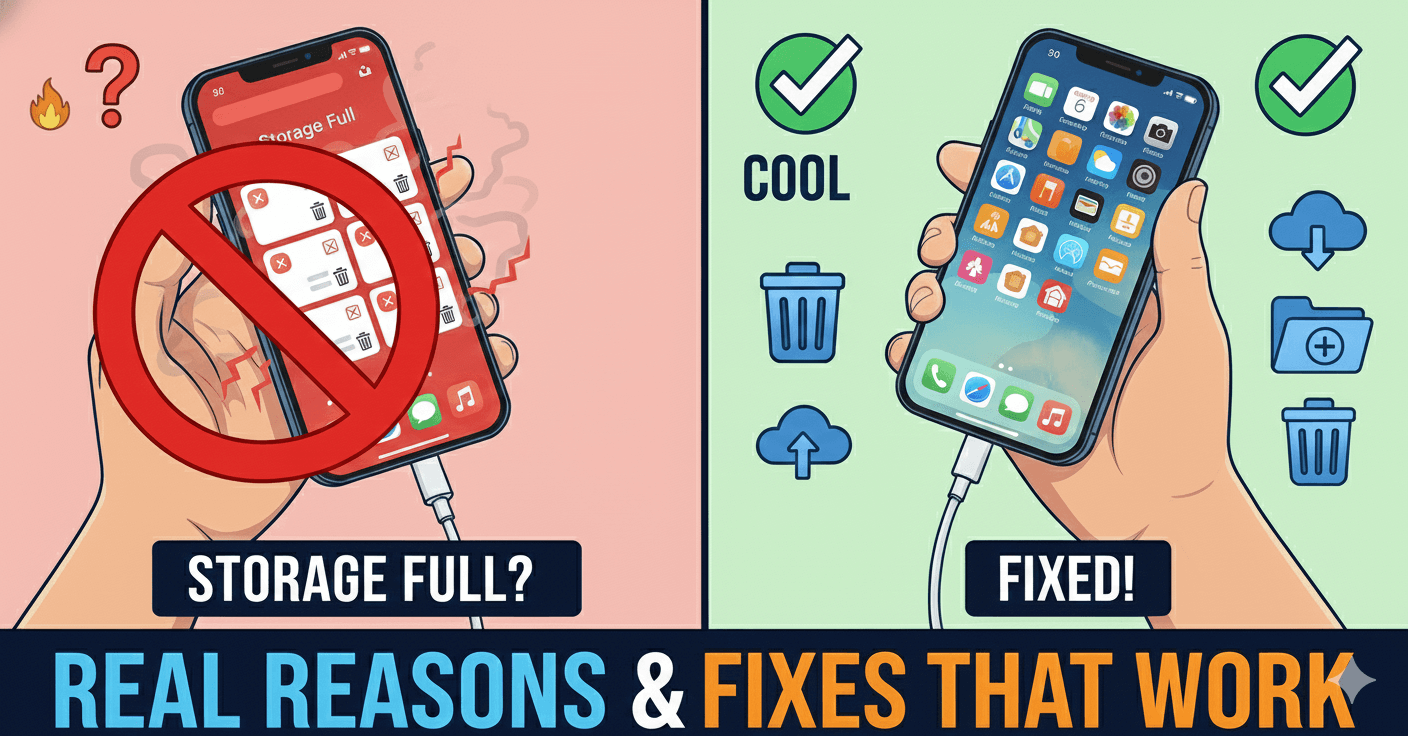
Many Android users face a confusing problem where the phone shows storage full, even after deleting photos, videos, or apps. You free up space, but within minutes the storage fills up again—or never seems to reduce at all.
I personally faced this issue on an Android phone where deleting large videos barely changed the available storage. After checking system storage details and cleaning hidden files properly, I was able to recover several gigabytes of space without resetting the phone.
In this article, I’ll explain why phone storage stays full and share real fixes that actually work.
Why Storage Still Shows Full After Deleting Files
This usually happens because:
- App cache keeps growing
- Deleted files are stored in trash folders
- WhatsApp and other apps keep duplicate media
- System files occupy hidden storage
- Downloads and temporary files are ignored
Android storage management is not always transparent.
Common Reasons Behind Storage Not Freeing Up
1. App Cache Takes Hidden Space
Apps like Chrome, Instagram, YouTube, and Facebook store large cache files.
2. Trash or Recently Deleted Folder
Gallery and file manager apps keep deleted files for 15–30 days.
3. WhatsApp Media and Backups
WhatsApp creates duplicate images, videos, and backup files.
4. System and “Other” Storage
Android groups many files under Other, which confuses users.
5. Offline Downloads
Music and video apps store large offline files silently.
Fixes That Actually Work
Method 1: Clear App Cache (Safely)
This was the biggest fix for me.
Steps:
- Go to Settings → Apps
- Open heavy apps
- Tap Storage
- Clear Cache (not data)
This can free several GB instantly.
Method 2: Empty Trash / Recently Deleted Folder
Deleted files may still occupy space.
What to do:
- Open Gallery app
- Check Trash / Recently deleted
- Permanently delete files
Do the same in file manager apps.
Method 3: Clean WhatsApp Storage Properly
WhatsApp is a major storage consumer.
Steps:
- Open WhatsApp → Settings → Storage and data
- Tap Manage storage
- Delete large videos and forwarded files
This alone can free massive space.
Method 4: Delete Offline Downloads
Offline content fills storage silently.
Check apps like:
- YouTube
- Spotify
- Netflix
- Amazon Prime Video
Delete unused downloads.
Method 5: Clear Downloads Folder
Many users forget this folder.
- Open File Manager
- Check Downloads
- Delete old APKs, PDFs, ZIP files
These files add up over time.
Method 6: Restart Phone After Cleaning
Restarting refreshes storage calculation.
After cleaning:
- Restart phone
- Check storage again
This often updates free space correctly.
Method 7: Use Built-in Storage Cleaner
Most Android phones include a storage cleaner.
- Use built-in Storage or Cleaner tool
- Avoid third-party cleaning apps
Built-in tools are safer and effective.
Why Storage Fills Up Quickly Again
Storage fills fast due to:
- Auto-downloaded media
- App cache rebuilding
- Cloud sync duplicates
Adjust app settings to control this.
What You Should Avoid
- Using fake cleaner apps
- Clearing app data unnecessarily
- Deleting system files
- Factory reset without backup
These can cause data loss.
FAQs
Does clearing cache delete personal data?
No, it only removes temporary files.
Why does “Other” storage keep growing?
It includes system cache, logs, and app data.
Is factory reset the only solution?
No, proper cleaning usually works.
Should I use SD card?
Yes, if your phone supports it.
Final Thoughts
If your phone storage is full even after deleting files, the problem is usually hidden cache, trash folders, or app data—not the files you deleted.
From my experience, clearing app cache and WhatsApp storage freed the most space instantly. With the right steps, you can recover storage without resetting your phone.

Vaishnav Singh is the founder and primary author of TechHary.com. Based in Mumbai, he brings hands-on professional experience to his writing, having worked extensively as a Windows expert within the IT industry. His practical background in solving complex technical issues fuels his passion for creating clear, helpful, and relevant content. At TechHary.com, Vaishnav dedicates himself to publishing in-depth articles, guides, and insights aimed at demystifying technology for enthusiasts and professionals alike. His mission is to build a trusted resource where readers can find reliable information to navigate the ever-evolving tech landscape.