
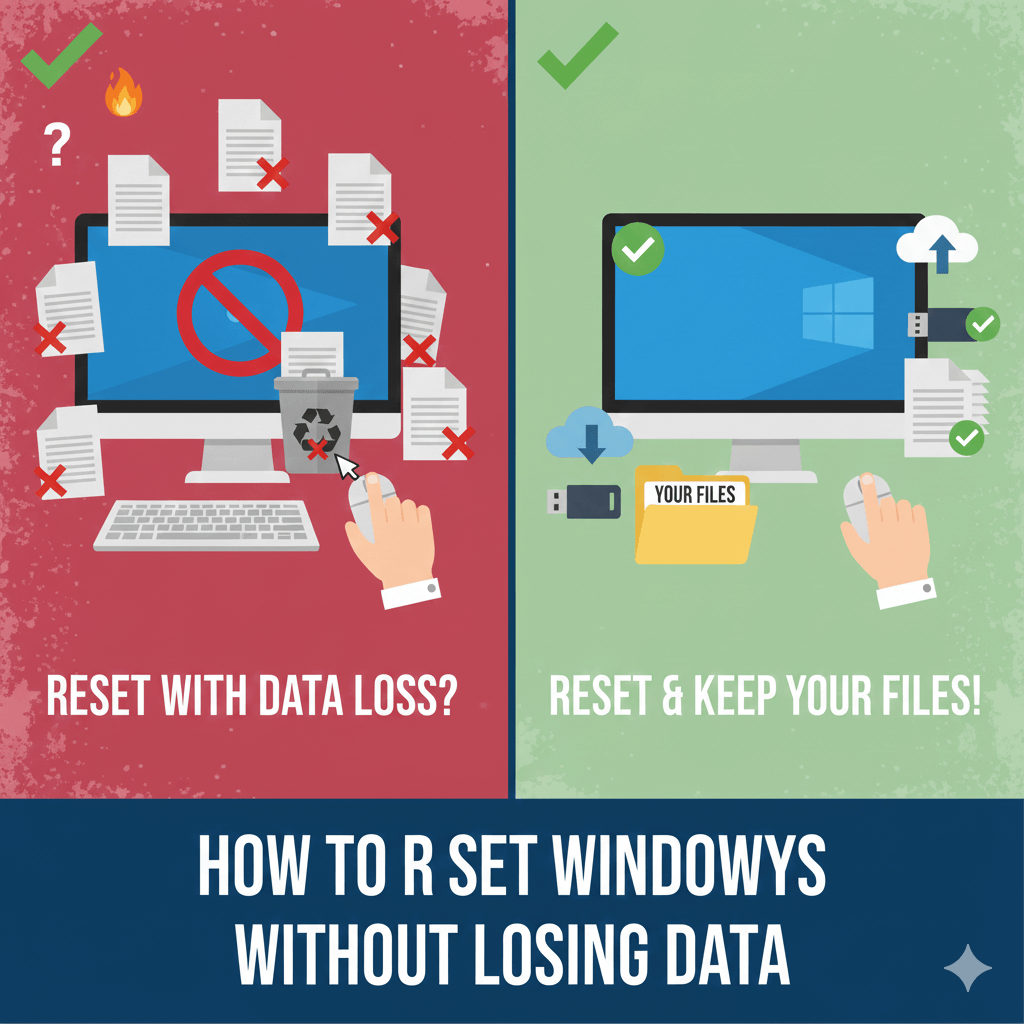
When Windows starts acting strange—frequent errors, slow performance, apps crashing—many users think a full Windows reinstall is the only solution. The biggest fear, however, is losing personal files like documents, photos, and videos.
I personally faced this situation when my Windows system became unstable after multiple updates. Instead of reinstalling Windows from scratch, I used the built-in reset option that keeps personal files intact, and it fixed most issues without data loss.
In this guide, I’ll explain how to reset Windows without losing data, what actually happens during the process, and when this method should be used.
What Does “Reset Windows Without Losing Data” Mean?
Windows offers a reset option called “Keep my files” that:
- Reinstalls Windows system files
- Removes installed apps and drivers
- Keeps personal files (Documents, Desktop, Pictures, etc.)
- Resets system settings to default
This is safer than a clean install and ideal for fixing software-related issues.
When Should You Reset Windows?
Resetting Windows without losing data is helpful when:
- Windows is very slow
- System errors appear frequently
- Apps crash repeatedly
- Windows updates fail
- Malware damage is suspected (but removed)
If your PC won’t boot at all, advanced recovery may be required.
Things to Do Before Resetting Windows
Before starting:
- Back up important files (recommended)
- Note down installed apps
- Ensure laptop is plugged in
- Connect to stable internet
Although files are preserved, backup adds extra safety.
How to Reset Windows Without Losing Data
Method 1: Reset Windows Using Settings (Easiest)
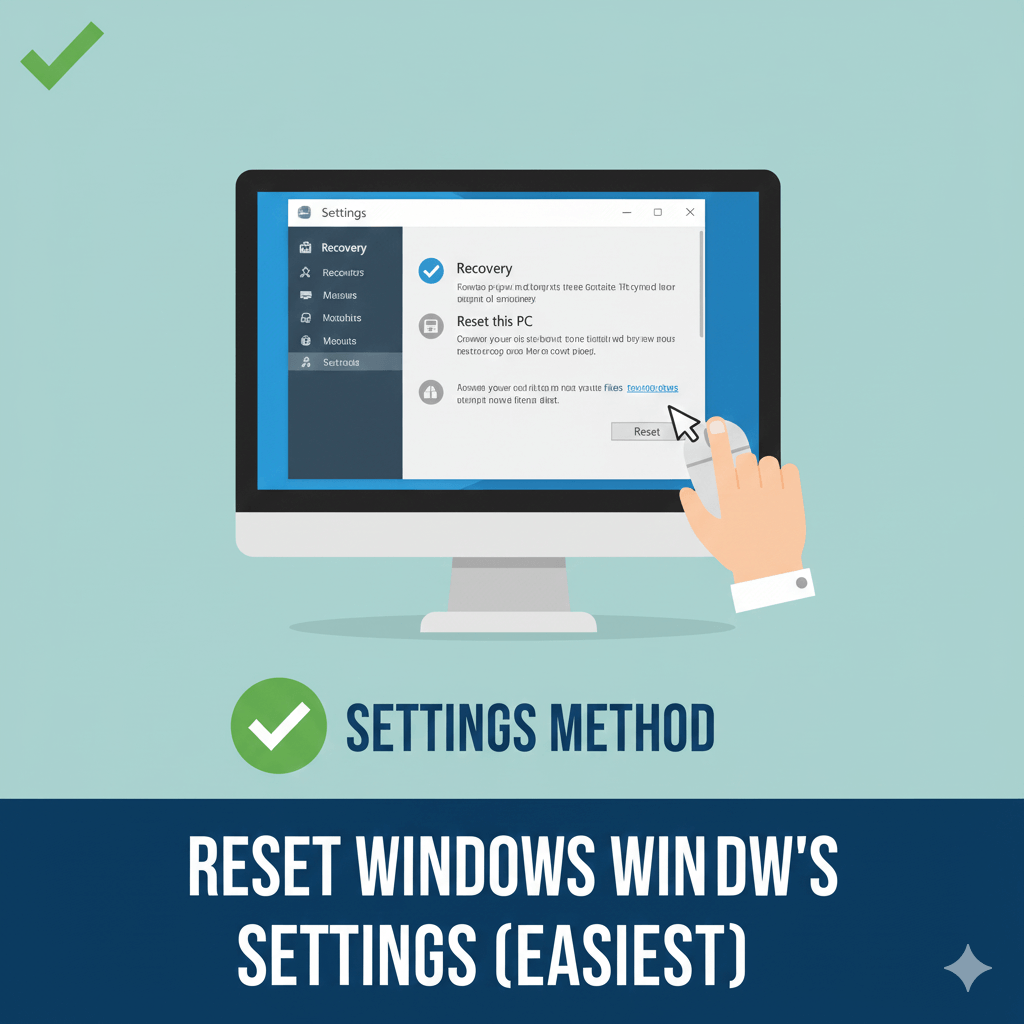
Steps (Windows 10 & 11):
- Open Settings
- Go to System → Recovery
- Click Reset this PC
- Choose Keep my files
- Select Cloud download or Local reinstall
- Follow on-screen instructions
Windows will reinstall itself while keeping your files.
Cloud Download vs Local Reinstall – Which Is Better?
- Cloud download:
Downloads fresh Windows files (best if system files are corrupted) - Local reinstall:
Uses existing system files (faster, no large download)
From my experience, cloud download works better for persistent issues.
What Gets Removed During Reset?
During reset:
- Installed software is removed
- Third-party drivers are removed
- Windows settings are reset
After reset, you’ll need to reinstall apps manually.
What Data Is Safe During Reset?
These files remain safe:
- Documents
- Pictures
- Videos
- Desktop files
- Downloads (usually)
Files stored in system folders outside user profile may be removed.
How Long Does Windows Reset Take?
Time depends on:
- PC speed
- Storage type (SSD or HDD)
- Reset method chosen
Typical time:
- SSD: 30–60 minutes
- HDD: 1–2 hours
Do not interrupt the process.
Common Problems After Reset (And Fixes)
Missing Drivers
- Download drivers from manufacturer website
- Run Windows Update
Slow Performance Initially
- Allow background optimization to finish
- Restart PC once or twice
Missing Apps
- Reinstall essential software manually
What You Should Avoid
- Turning off PC during reset
- Resetting without backup (risky)
- Using third-party reset tools
- Resetting repeatedly in short time
FAQs
Does resetting Windows delete files?
Not if you choose Keep my files.
Will reset remove viruses?
It removes most malware, but a scan is recommended afterward.
Do I need a Windows key again?
No. Activation remains intact.
Is reset better than reinstall?
For most users, yes.
Final Thoughts
Resetting Windows without losing data is one of the safest ways to fix major system problems without reinstalling everything from scratch.
From my experience, using the Keep my files option fixed performance issues and system errors while saving hours of work restoring data.

Vaishnav Singh is the founder and primary author of TechHary.com. Based in Mumbai, he brings hands-on professional experience to his writing, having worked extensively as a Windows expert within the IT industry. His practical background in solving complex technical issues fuels his passion for creating clear, helpful, and relevant content. At TechHary.com, Vaishnav dedicates himself to publishing in-depth articles, guides, and insights aimed at demystifying technology for enthusiasts and professionals alike. His mission is to build a trusted resource where readers can find reliable information to navigate the ever-evolving tech landscape.