
Here is my personal experience fixing the “App Not Installed” error on Android.
Even though I regularly work with smartphones and apps, I recently faced ‘app not installed as app isn’t compatible with your phone’ error while installing an app on my Android phone. After trying multiple solutions and finally fixing the issue, I decided to share what actually worked for me so other users don’t waste time on trial and error.
If you use an Android phone regularly, chances are you’ve seen the frustrating “App Not Installed” error at least once. It usually appears when installing an app from an APK file, but sometimes it even happens with Play Store apps.
I’ve faced this error multiple times on different Android phones, including budget and mid-range devices. After testing several fixes, I found that the problem is not caused by a single reason. Instead, it’s usually a combination of storage issues, app conflicts, Android version limitations, or system restrictions.
In this guide, I’ll explain why the “App Not Installed” error happens and share the 7 methods that actually worked for me and many other Android users.
What Does “App Not Installed” Mean on Android?
The “App Not Installed” error means that Android tried to install the app but failed during the process. This failure can happen before, during, or after verification of the app package.
Android blocks app installation when:
- The app conflicts with an existing version
- The package is incompatible with your Android version
- There isn’t enough usable storage
- System security restrictions stop the install
Understanding the cause makes fixing the issue much easier.
Common Reasons Behind the “App Not Installed” Error
Before jumping into solutions, it’s important to know why this error appears.
1. App Is Not Compatible With Your Android Version
Many apps require a minimum Android version. If your phone runs an older version, installation will fail silently.
2. Corrupted or Incomplete APK File
If the APK file didn’t download properly, Android won’t be able to install it.
3. App Signature Conflict
This happens when:
- You already have the same app installed from Play Store
- You try to install a modified or older APK over it
4. Insufficient Storage (Even If Storage Looks Free)
Android needs temporary space during installation. Sometimes internal storage looks free, but system cache blocks the process.
5. Disabled Permissions or Security Restrictions
Unknown app installs may be blocked at the system level.
7 Methods That Actually Fixed “App Not Installed” Error
Method 1: Check App Compatibility First
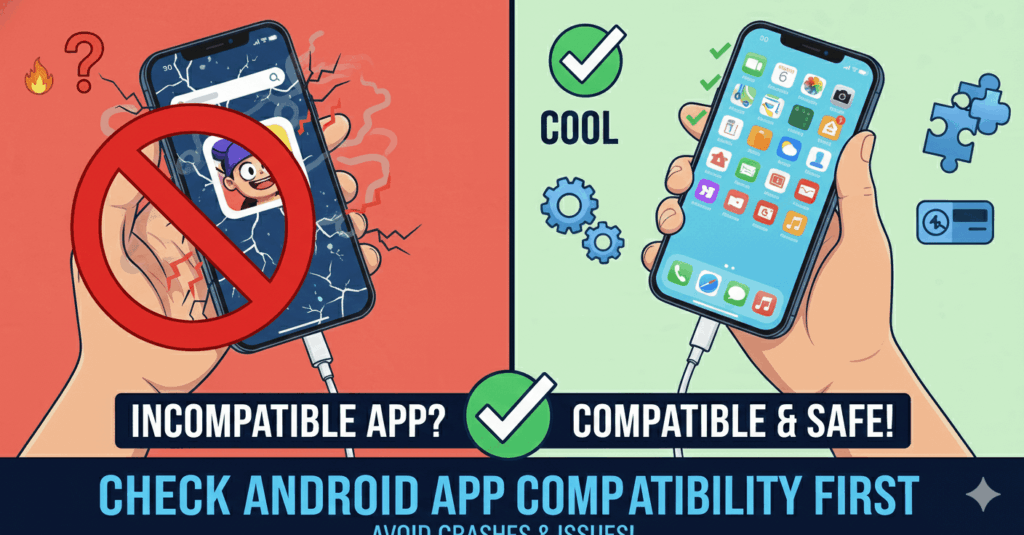
This is the most overlooked step to Solve apk not compatible with your phone
What to do:
- Check the app’s minimum Android version
- Compare it with your phone’s Android version
- If your Android version is lower, the app will not install
📌 Tip: If an app requires Android 11 and your phone runs Android 10, no fix will work unless you update your OS.
Method 2: Uninstall the Existing Version of the App
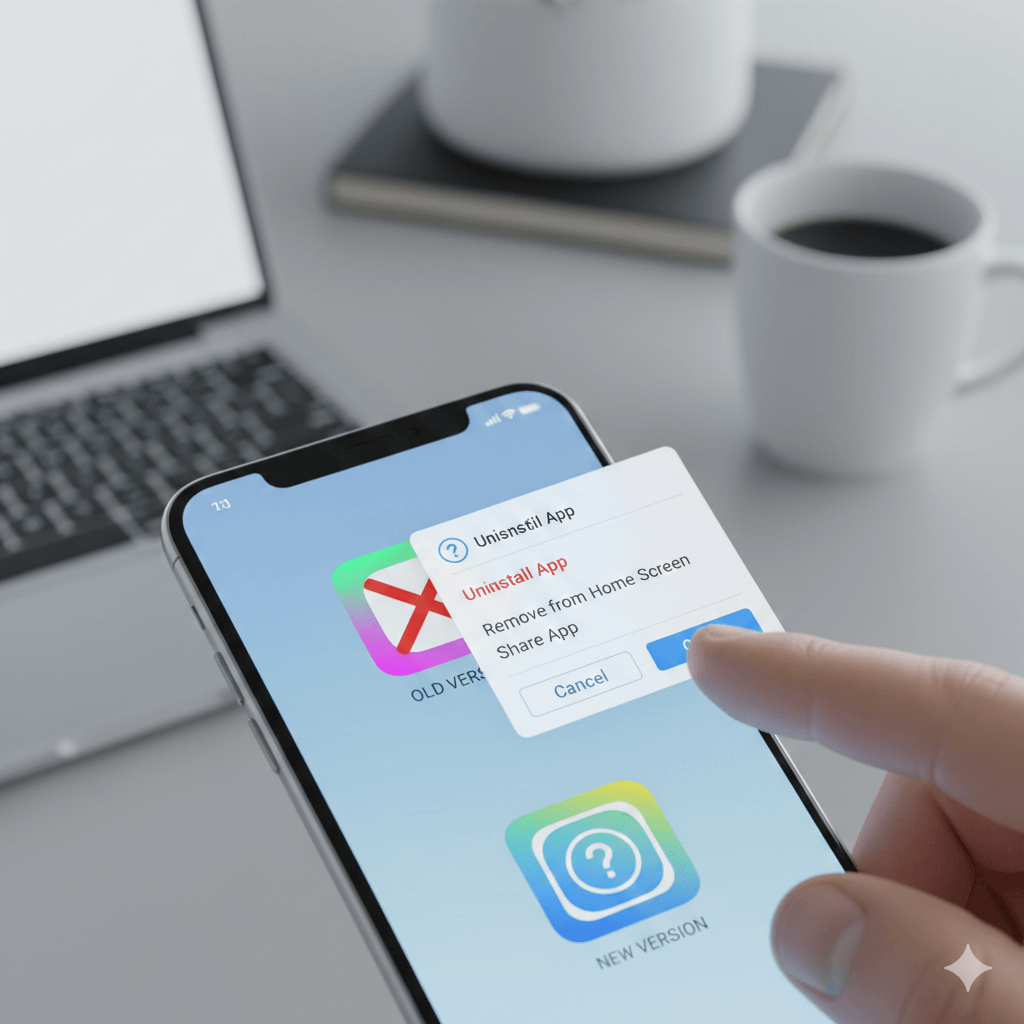
This method worked for me when installing APK files.
Why it works:
Android does not allow installing an app with a different signature over an existing version.
Steps:
- Go to Settings → Apps
- Find the app you’re trying to install
- Tap Uninstall
- Restart your phone
- Try installing the app again
Method 3: Clear Cache and Data of Package Installer
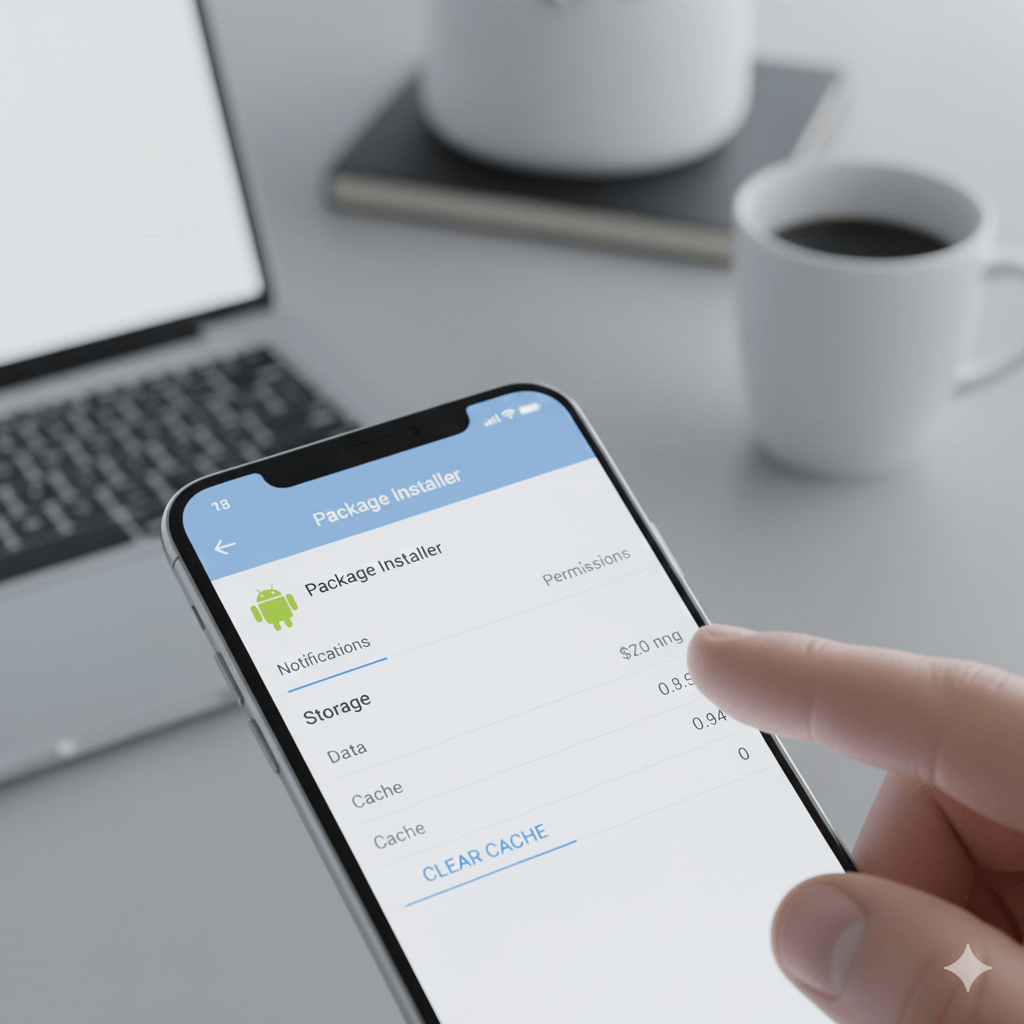
Sometimes the problem is not the app, but Android’s installer service.
Steps:
- Open Settings → Apps
- Tap Show system apps
- Find Package Installer (or Package Manager)
- Tap Storage
- Clear Cache and Data
- Restart your phone
This method fixes many silent installation failures.
Method 4: Enable “Install Unknown Apps” Permission
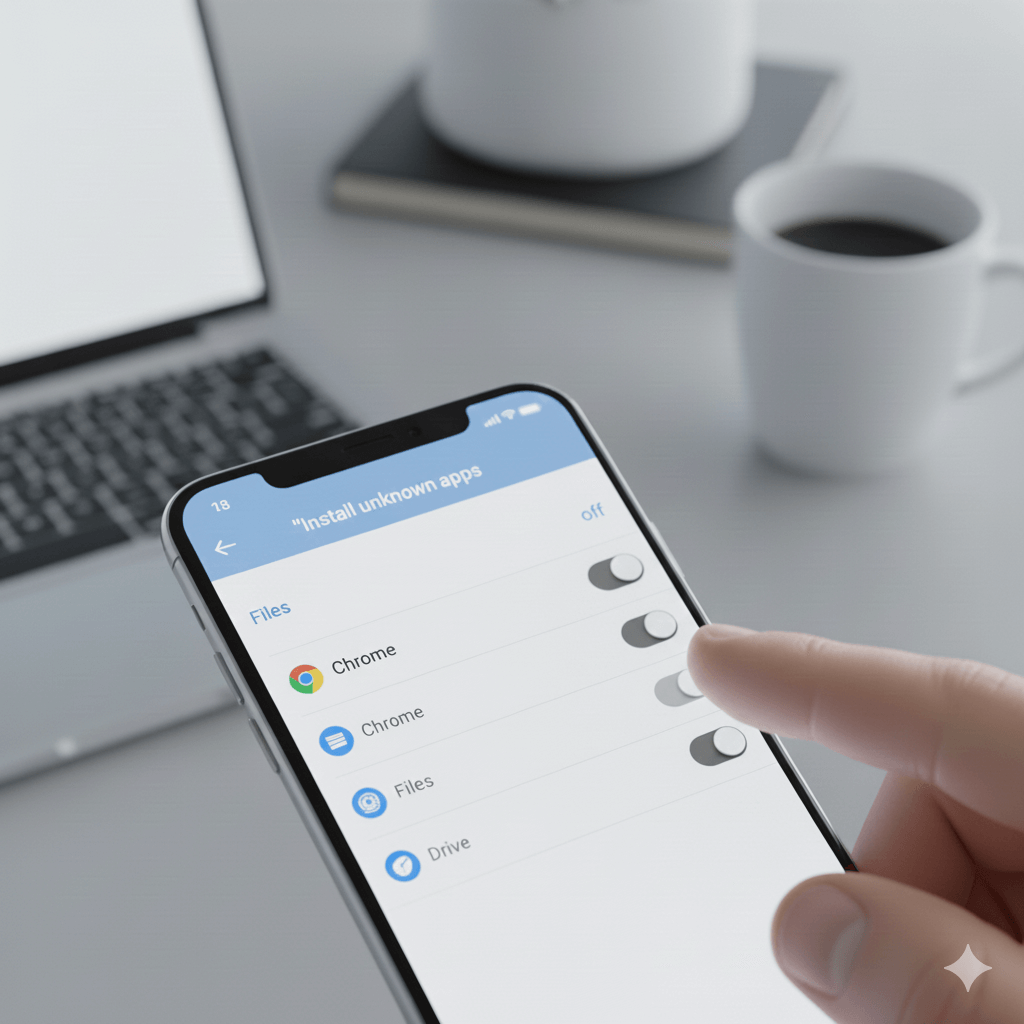
If you’re installing an APK from a browser or file manager, Android may block it.
Steps (Android 8+):
- Open Settings → Security
- Tap Install unknown apps
- Select the app you’re using (Chrome, Files, etc.)
- Enable Allow from this source
Without this permission, APK installation will fail without a clear warning.
Method 5: Check Available Internal Storage Properly
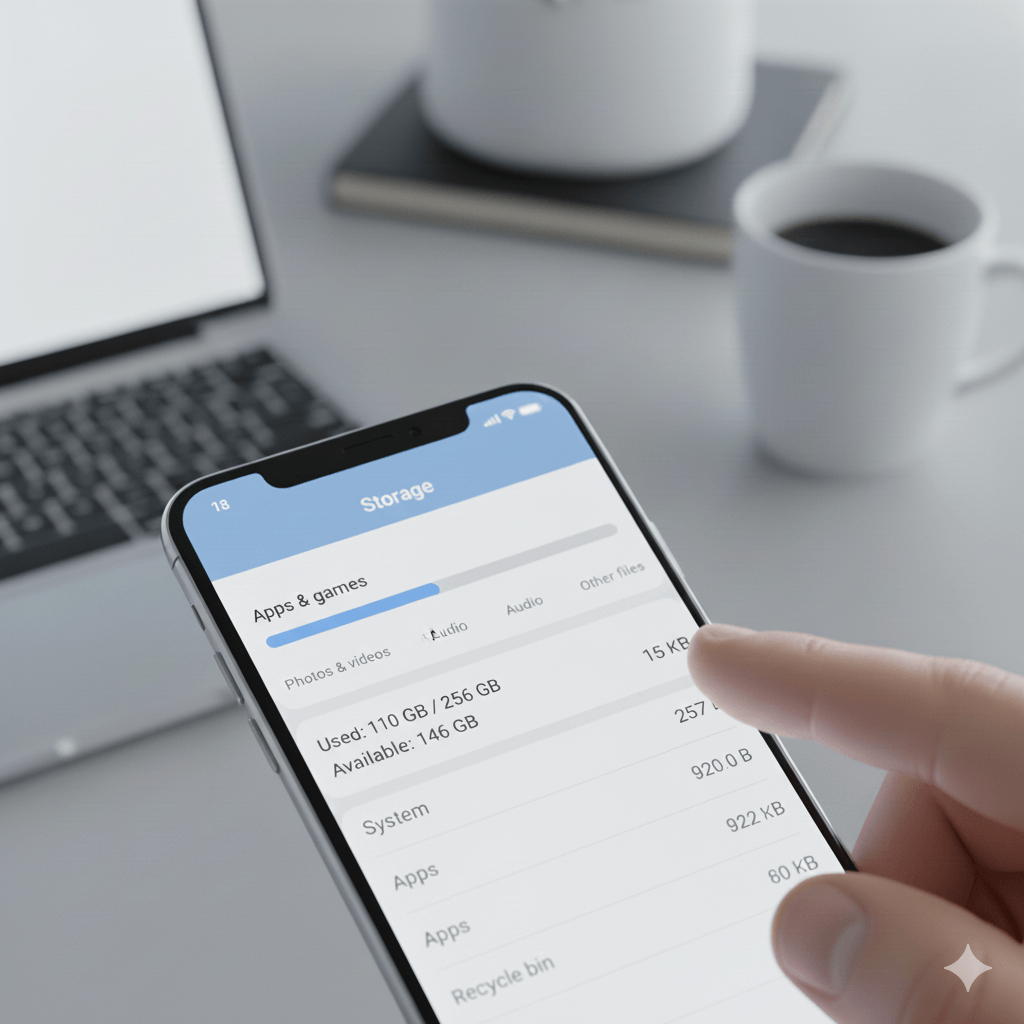
Even if your phone shows free storage, Android may still block installation.
What worked for me:
- Delete unused apps
- Clear cache of large apps (YouTube, Chrome, Instagram)
- Move media files to cloud or SD card
- Restart phone before installing
Android needs extra temporary space to unpack app files.
Method 6: Re-download the APK From a Trusted Source
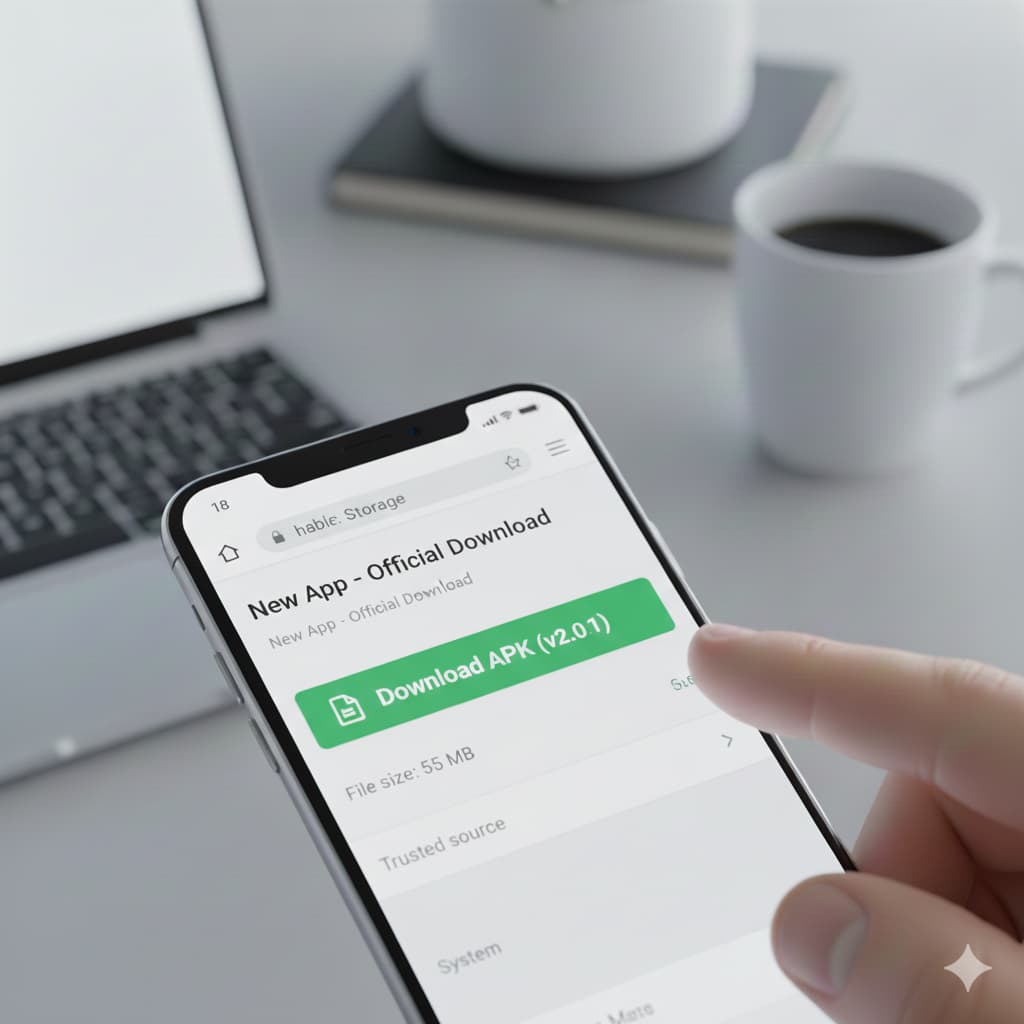
A corrupted APK is one of the most common causes.
Best practices:
- Avoid third-party sites with modified apps
- Download APK again from a trusted source
- Avoid interrupted downloads
If the APK file size looks unusually small, it’s likely incomplete.
Method 7: Try Installing Using a Different Method
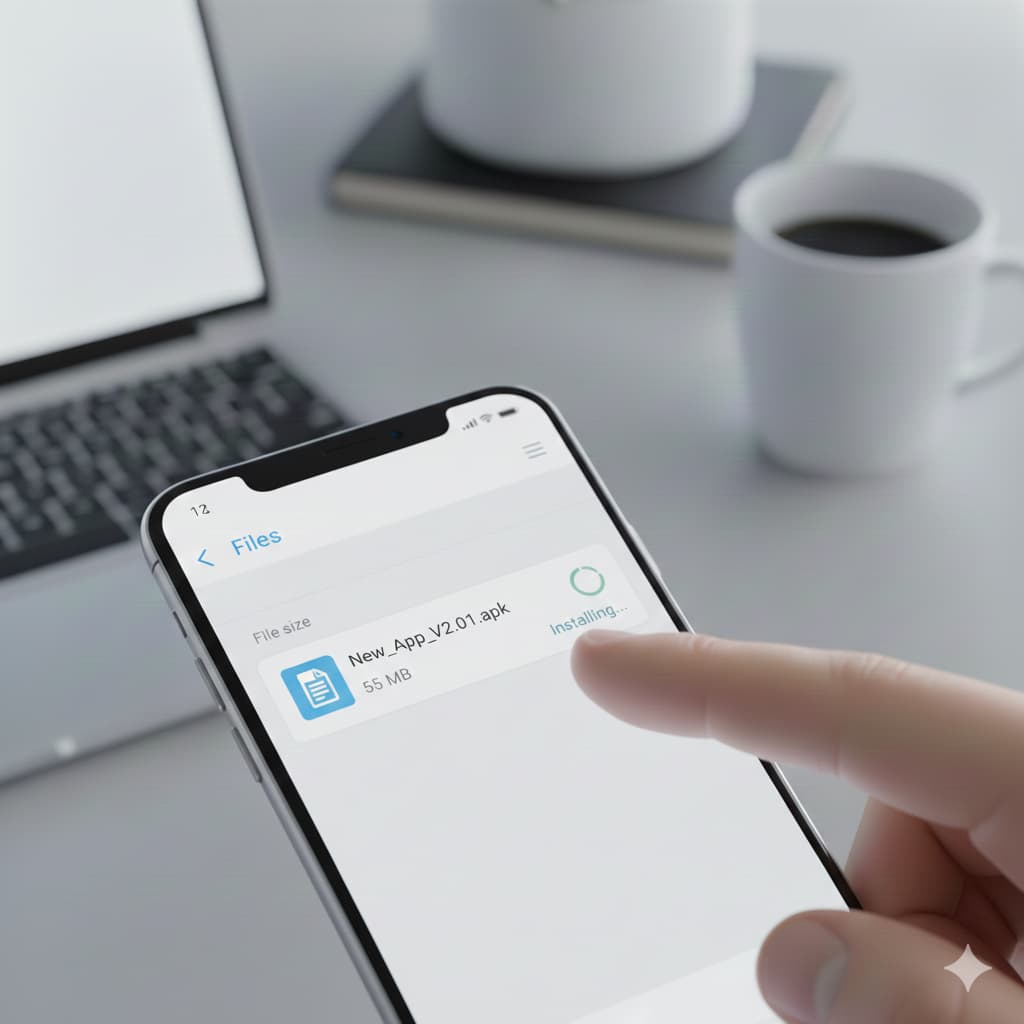
If normal installation fails, change the installation approach.
Options:
- Install using a different file manager
- Use split APK installer (for modern apps)
- Restart phone in safe mode and try again
This helps when background apps interfere with installation.
Why This Error Happens More With APK Files
Play Store apps rarely show this error because Google verifies compatibility automatically. APK installs skip those checks, which increases failure chances.
That’s why users see this error more often when:
- Installing older versions
- Using modified apps
- Installing region-restricted apps
Things You Should Avoid Doing
To prevent repeated errors:
- Don’t install multiple APK versions over each other
- Avoid force-installing incompatible apps
- Don’t use unreliable APK sources
- Don’t ignore Android version requirements
Frequently Asked Questions (FAQs)
Can “App Not Installed” Error Damage My Phone?
No. This error does not harm your phone. It simply blocks installation for safety reasons.
Does Factory Reset Fix This Error?
A factory reset may work, but it should be the last option. In most cases, the methods above are enough.
Is This Error Caused by Virus or Malware?
Usually no. However, corrupted or unsafe APKs can trigger installation failure.
Why Does It Say “App Not Installed” Without Any Explanation?
Android hides technical errors to protect users. The real cause is usually compatibility or signature conflict.
Final Thoughts
The “App Not Installed” error on Android is annoying but fixable. In my experience, uninstalling the existing app version and clearing the Package Installer cache solved the issue most of the time.
If one method doesn’t work, try the next — because the cause differs from phone to phone.
Once you understand why Android blocks the installation, fixing it becomes much easier.

Vaishnav Singh is the founder and primary author of TechHary.com. Based in Mumbai, he brings hands-on professional experience to his writing, having worked extensively as a Windows expert within the IT industry. His practical background in solving complex technical issues fuels his passion for creating clear, helpful, and relevant content. At TechHary.com, Vaishnav dedicates himself to publishing in-depth articles, guides, and insights aimed at demystifying technology for enthusiasts and professionals alike. His mission is to build a trusted resource where readers can find reliable information to navigate the ever-evolving tech landscape.