
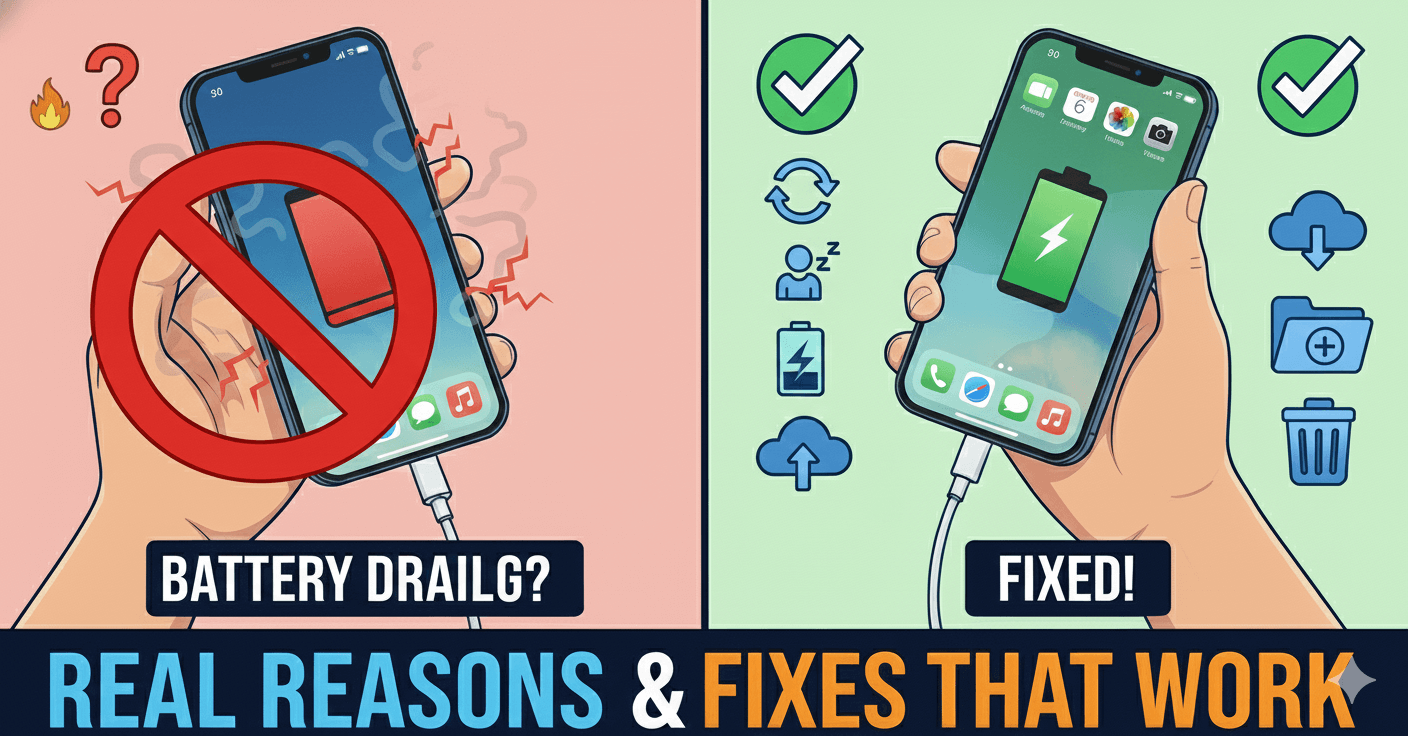
If your Android battery drains fast even when you’re not using the phone, it can be frustrating. The screen is off, apps aren’t open, yet the battery percentage keeps dropping. This issue is common on both new and older Android phones.
I personally noticed this problem after a system update, where my phone lost 10–15% battery overnight without any active use. After checking battery usage stats and adjusting a few settings, I was able to fix the drain without replacing the battery.
In this article, I’ll explain why Android battery drains when idle and share practical fixes that actually work.
Why Battery Drains Even When Phone Is Idle
Battery drain during idle usually happens due to:
- Background apps running silently
- Poor network signal
- System services syncing constantly
- Misconfigured battery settings
- App bugs after updates
Identifying the real cause is the key.
Common Reasons for Idle Battery Drain
1. Background App Activity
Some apps continue syncing even when not in use.
2. Poor Network or Signal
Phones consume more power searching for signal.
3. Location Services Running Continuously
GPS and location services drain battery quietly.
4. Sync Settings Always On
Email, cloud, and social apps sync repeatedly.
5. Battery Optimization Disabled
Some apps bypass Android’s battery optimization.
Fixes That Actually Work
Method 1: Check Battery Usage Stats
This helped me identify the culprit.
Steps:
- Go to Settings → Battery
- Check Battery usage
- Identify apps consuming power in background
- Restrict or uninstall them
Method 2: Enable Battery Optimization
Ensure apps are optimized properly.
Steps:
- Open Settings → Apps
- Select the app
- Tap Battery
- Enable Optimize
This limits background activity.
Method 3: Turn Off Unnecessary Sync
Reduce constant background syncing.
What to do:
- Disable auto-sync for unused accounts
- Reduce sync frequency for email
- Turn off unused cloud backups
This saves battery during idle.
Method 4: Disable Location Services When Not Needed
Location drains battery even when screen is off.
Steps:
- Turn off GPS when not in use
- Set location access to While using app
- Disable location history if not needed
Method 5: Improve Network Conditions
Poor signal increases battery usage.
Try this:
- Switch to Wi-Fi when possible
- Enable Airplane mode in low-signal areas
- Avoid constantly switching networks
Method 6: Restart Phone Occasionally
Restarting clears stuck background processes.
A weekly restart helps maintain battery health.
Method 7: Check for App and System Updates
App bugs after updates often cause drain.
- Update apps from Play Store
- Install system updates if available
This resolves many idle drain issues.
When Battery Replacement Is Needed
If battery drains even after all fixes:
- Phone is more than 2–3 years old
- Battery health is poor
- Phone heats up frequently
A battery replacement may be required.
What You Should Avoid
- Installing fake battery saver apps
- Keeping Bluetooth and hotspot on unnecessarily
- Ignoring battery usage stats
- Using aggressive background apps
These worsen battery drain.
FAQs
Is idle battery drain normal?
Minor drain is normal, but fast drain is not.
Does dark mode save battery?
Yes, on AMOLED screens.
Can updates cause battery drain?
Yes, temporarily after updates.
Should I factory reset?
Only as a last option.
Final Thoughts
If your Android battery drains fast even when idle, the issue is usually caused by background apps or misconfigured settings, not hardware failure.
From my experience, enabling battery optimization and restricting background activity fixed the problem quickly. Small changes can significantly improve standby battery life.

Vaishnav Singh is the founder and primary author of TechHary.com. Based in Mumbai, he brings hands-on professional experience to his writing, having worked extensively as a Windows expert within the IT industry. His practical background in solving complex technical issues fuels his passion for creating clear, helpful, and relevant content. At TechHary.com, Vaishnav dedicates himself to publishing in-depth articles, guides, and insights aimed at demystifying technology for enthusiasts and professionals alike. His mission is to build a trusted resource where readers can find reliable information to navigate the ever-evolving tech landscape.