
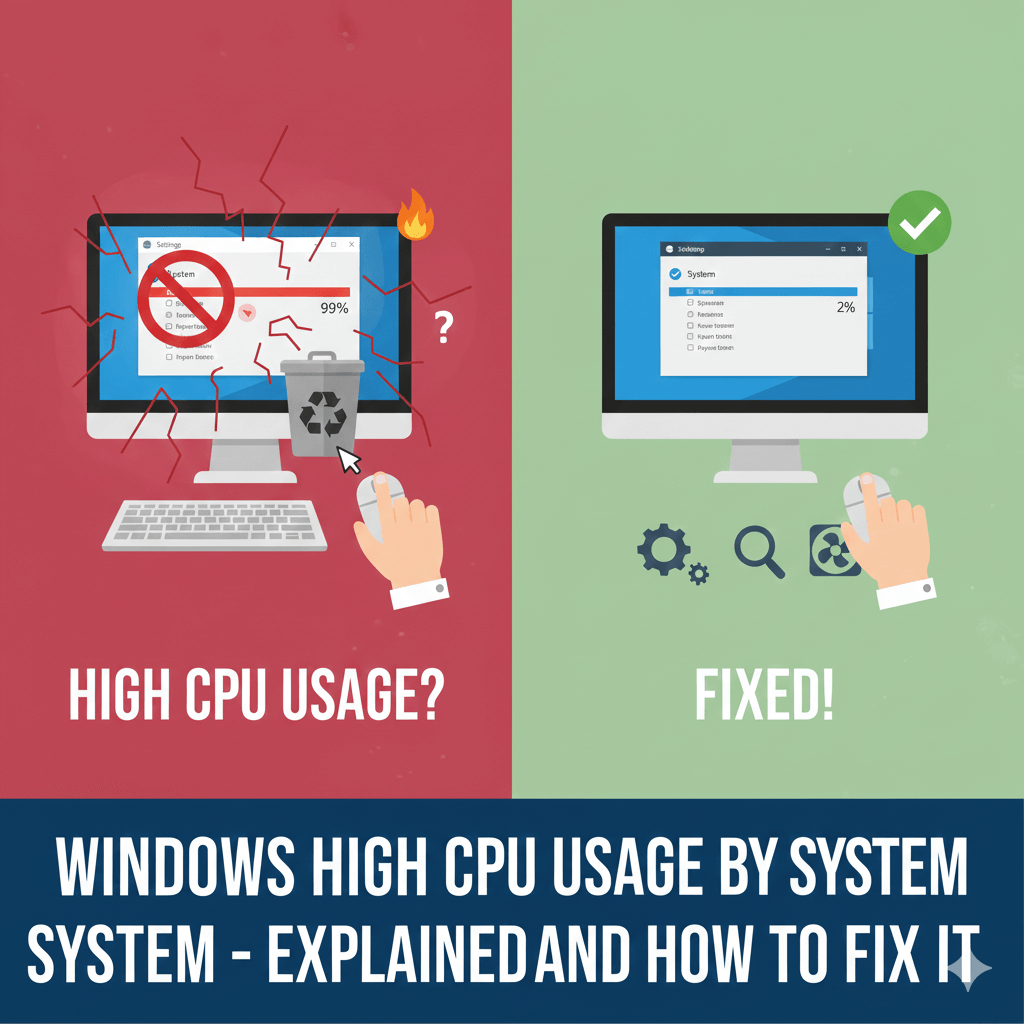
Many Windows users notice that their computer becomes slow, the fan runs loudly, and CPU usage suddenly spikes — even when no heavy apps are open. When checking Task Manager, the “System” process often shows unusually high CPU usage.
I personally faced this issue on a Windows laptop where CPU usage stayed above 40–50% with only basic apps running. After investigating system services and testing several fixes, I was able to bring CPU usage back to normal without reinstalling Windows.
In this article, I’ll explain what the “System” process is, why it uses high CPU, and share practical fixes that actually work.
What Is “System” in Windows Task Manager?
The System process represents:
- Core Windows kernel operations
- Hardware communication
- Device drivers
- System-level services
It’s normal for System to use some CPU, but constant high usage indicates an underlying issue.
Why System Uses High CPU in Windows
1. Faulty or Outdated Drivers
Drivers running in the background can overload the system process.
2. Hardware Interrupts
Devices like USB, audio, or network adapters may cause excessive interrupts.
3. Windows Update Running in Background
System processes may spike during updates or scans.
4. Malware or Corrupted System Files
Malicious software can hide inside system-level processes.
5. Power or Performance Settings
Incorrect power plans can stress CPU unnecessarily.
Fixes That Actually Work
Method 1: Restart Your PC

Simple but effective.
Restarting:
- Clears stuck system processes
- Resets driver behavior
- Stops background loops
Always try this first.
Method 2: Check and Update Device Drivers
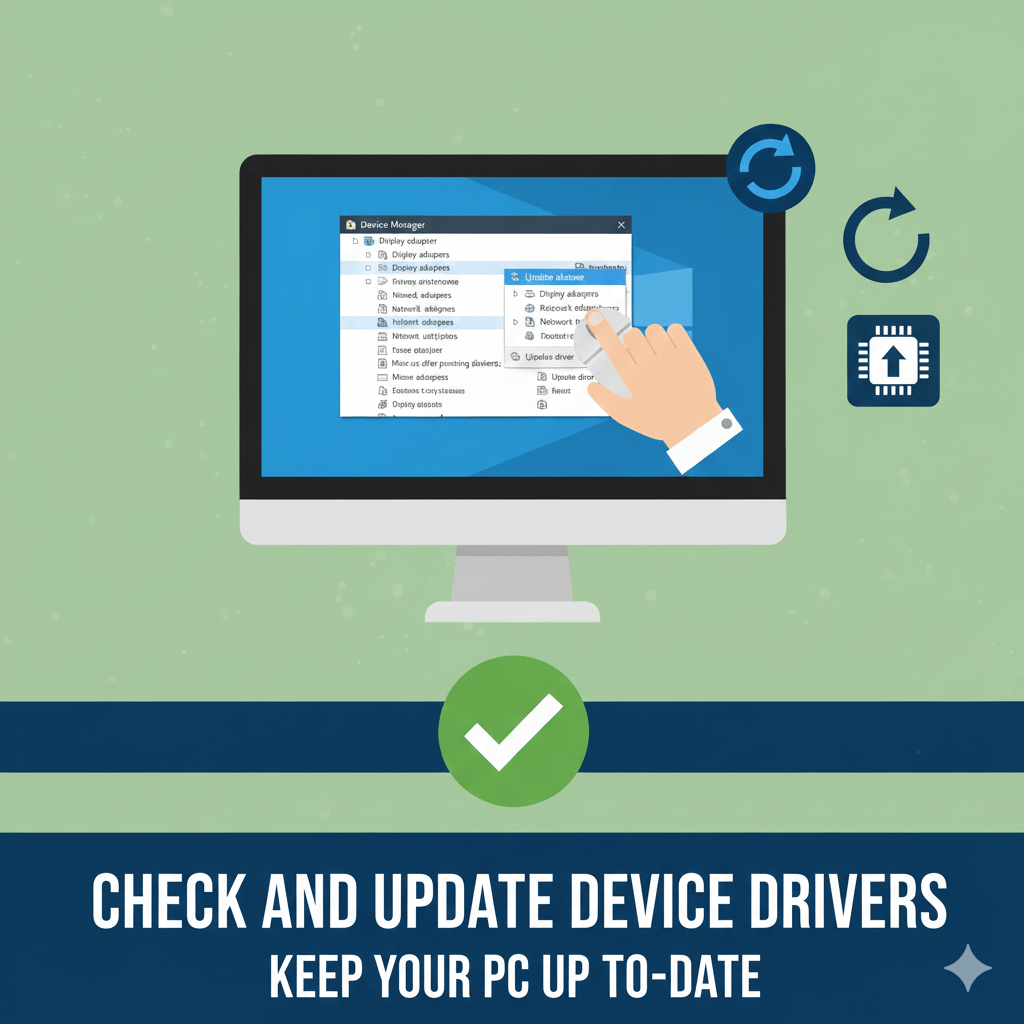
This fix worked best for me.
Steps:
- Open Device Manager
- Update:
- Network drivers
- Audio drivers
- Graphics drivers
- Restart PC
Outdated drivers are the most common cause of high System CPU usage.
Method 3: Disconnect External Devices

Faulty USB devices can overload system interrupts.
Try this:
- Disconnect USB drives, printers, external keyboards
- Restart PC
- Reconnect devices one by one
This helps identify problematic hardware.
Method 4: Run Windows Security Scan

Malware can hide behind system processes.
Steps:
- Open Windows Security
- Run a Full scan
- Remove detected threats
Avoid third-party cleaners claiming instant fixes.
Method 5: Disable Unnecessary Startup Programs
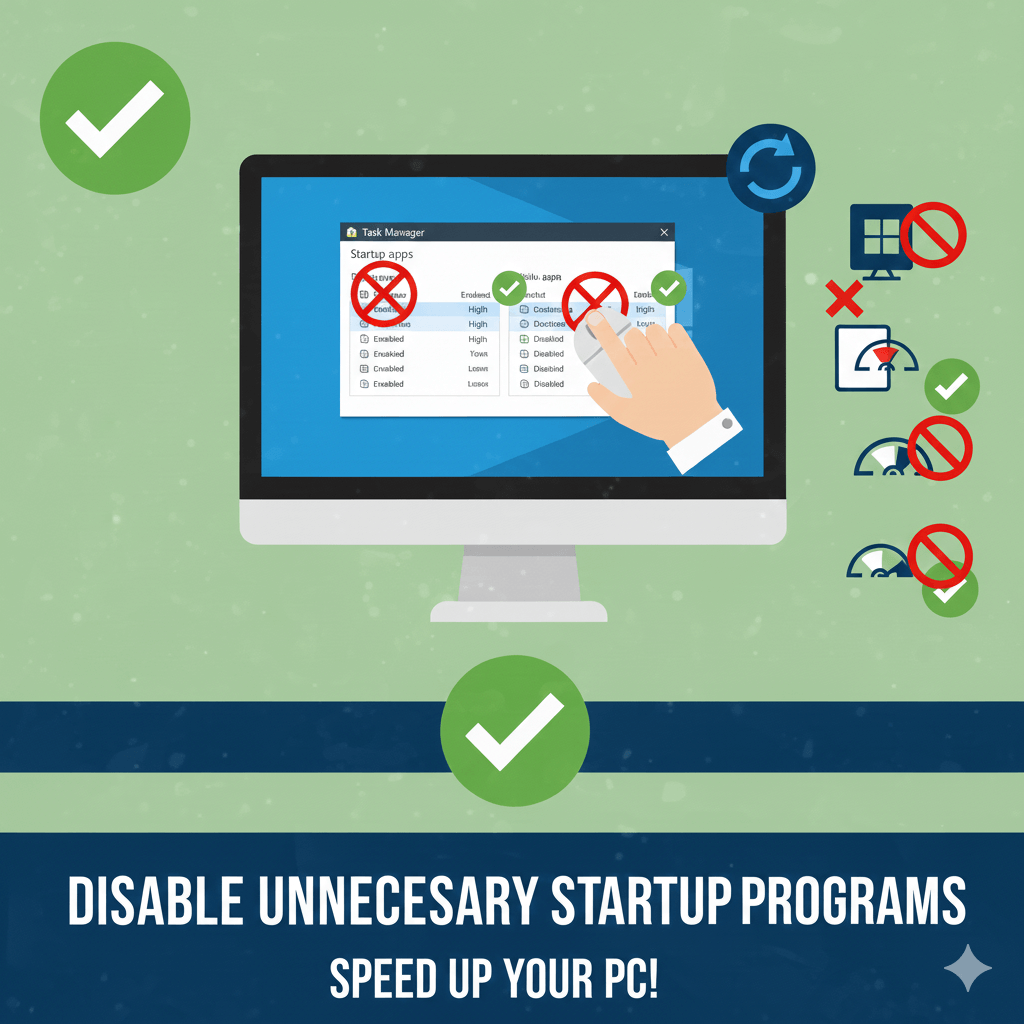
Too many startup apps increase system load.
Steps:
- Open Task Manager
- Go to Startup
- Disable non-essential apps
- Restart PC
This reduces background CPU usage.
Method 6: Change Power Plan to Balanced

High performance mode can keep CPU under constant load.
Steps:
- Open Power Options
- Select Balanced
- Apply settings
This allows CPU to scale usage properly.
Method 7: Check Windows Updates
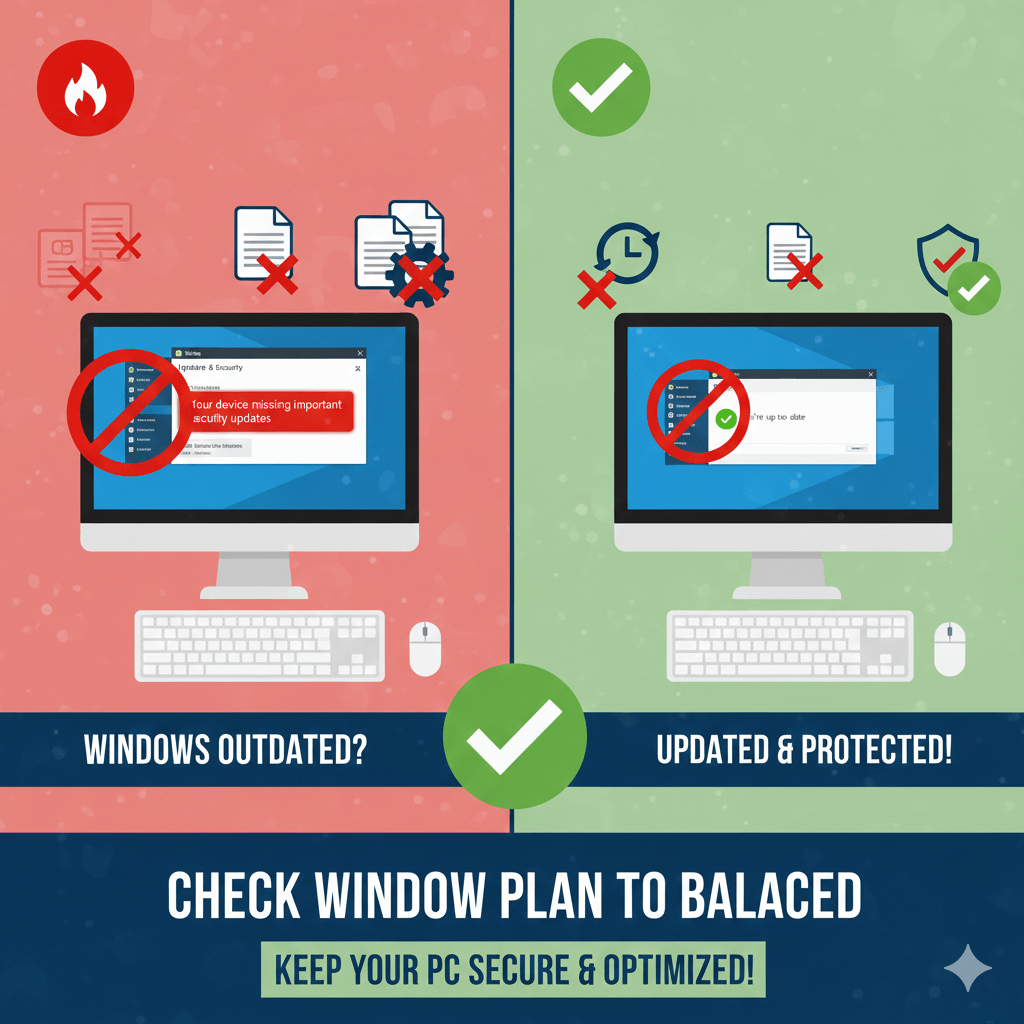
Incomplete updates may cause system spikes.
Steps:
- Open Settings → Windows Update
- Install pending updates
- Restart PC
This resolves many background system loops.
What You Should Avoid
- Installing “CPU booster” apps
- Disabling system services randomly
- Ignoring driver updates
- Using cracked software
These often worsen the issue.
FAQs
Is high CPU usage by System dangerous?
Not immediately, but prolonged usage can slow the PC and increase heat.
Can hardware failure cause this?
Rarely, but faulty devices can trigger system interrupts.
Does reinstalling Windows fix it?
Yes, but it should be the last option.
You can download windows from official website
Is this issue common after updates?
Yes, driver compatibility issues often appear after updates.
Final Thoughts
High CPU usage by the System process usually means there’s a driver or hardware-related issue in the background.
From my experience, updating network and audio drivers reduced CPU usage instantly. Try the fixes step by step before considering drastic measures.

Vaishnav Singh is the founder and primary author of TechHary.com. Based in Mumbai, he brings hands-on professional experience to his writing, having worked extensively as a Windows expert within the IT industry. His practical background in solving complex technical issues fuels his passion for creating clear, helpful, and relevant content. At TechHary.com, Vaishnav dedicates himself to publishing in-depth articles, guides, and insights aimed at demystifying technology for enthusiasts and professionals alike. His mission is to build a trusted resource where readers can find reliable information to navigate the ever-evolving tech landscape.