
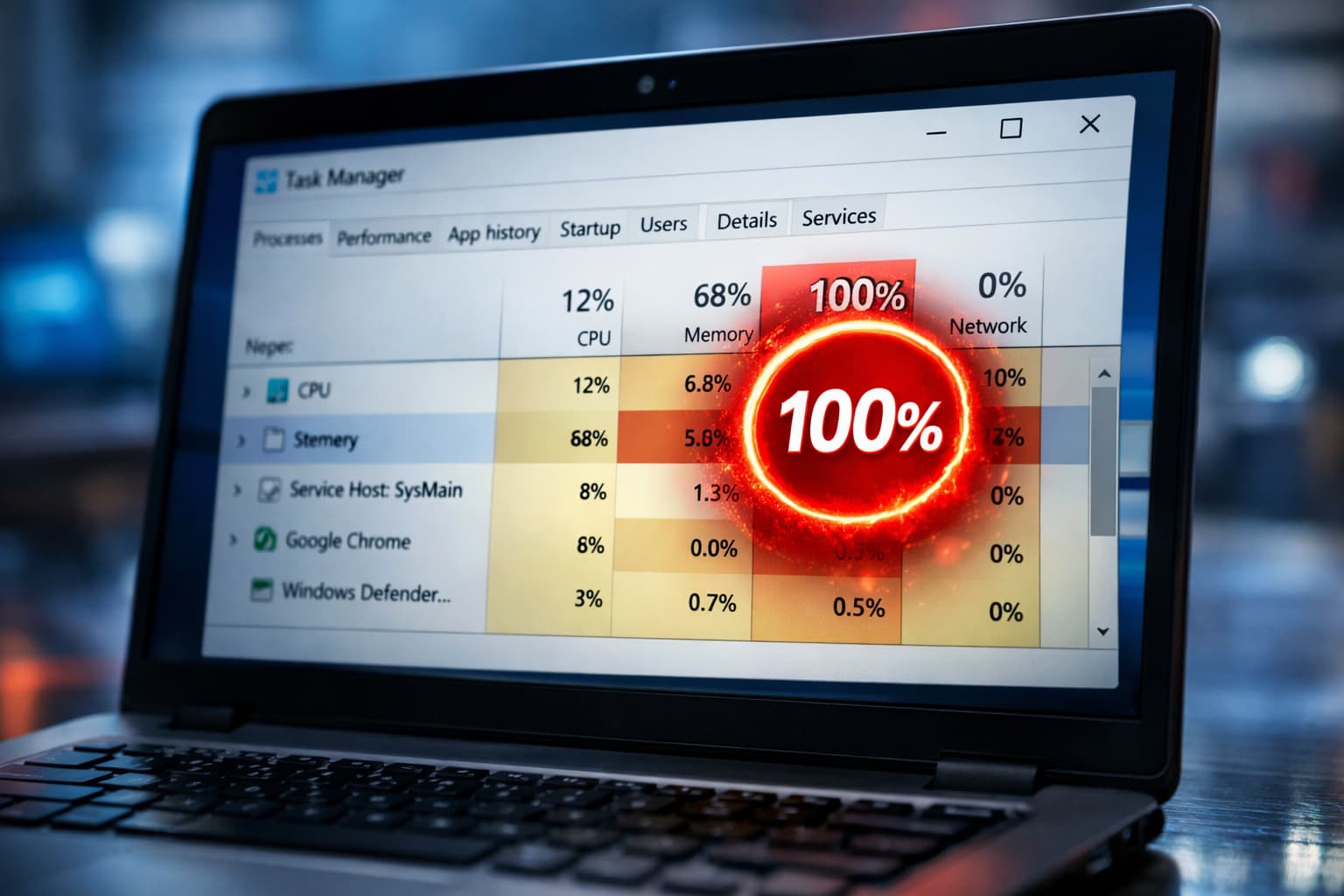
Recently, I have encountered a problem where Windows 10/11 is showing 100% disk usage so this entire article is based on my experience on what I faced and how I resolved it. I am not sure which method will work for you but try them all to learn which one will work for you.
If your Windows laptop or PC shows 100% disk usage, the system becomes extremely slow, apps freeze, and even simple tasks take forever. This issue is very common on Windows 10 and Windows 11, especially on systems with HDDs.
I personally faced this issue on a Windows laptop where disk usage stayed at 100% even when no apps were open. After checking system services and background processes, I fixed the problem without reinstalling Windows.
In this article, I’ll explain why Windows shows 100% disk usage and share practical fixes that actually work.
How 100% Disk Usage Problem Appears
You may notice:
- System becomes very slow
- Disk usage stuck at 100% in Task Manager
- Apps open with long delays
- Fan noise increases
- Laptop freezes randomly
These signs usually indicate background services or disk overload.
Common Reasons for 100% Disk Usage in Windows
1. Background Windows Services
Services like SysMain and Windows Search can overload disks.
2. Antivirus Scanning in Background
Security scans consume heavy disk resources.
3. Windows Updates Running
Updates may use disk heavily after startup.
4. Corrupted System Files
Damaged files cause repeated disk access.
5. HDD Limitations
Traditional hard drives struggle with modern Windows tasks.
Fixes That Actually Work
Method 1: Restart the PC (Important First Step)
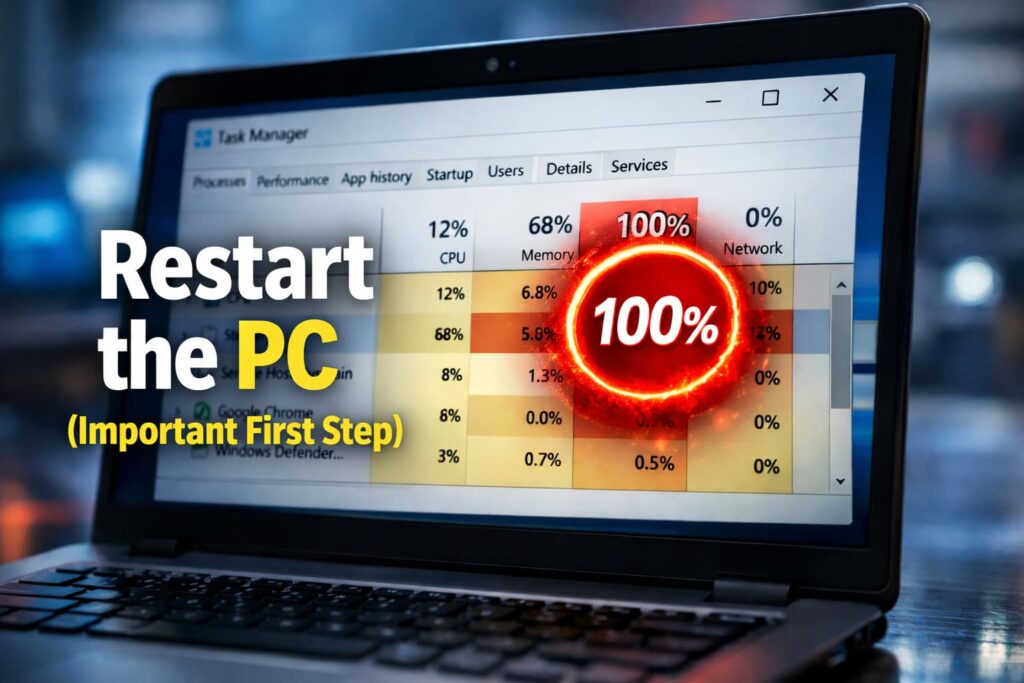
This clears temporary disk overload issues.
I’ve seen disk usage drop instantly after a restart.
Method 2: Disable SysMain (Superfetch)
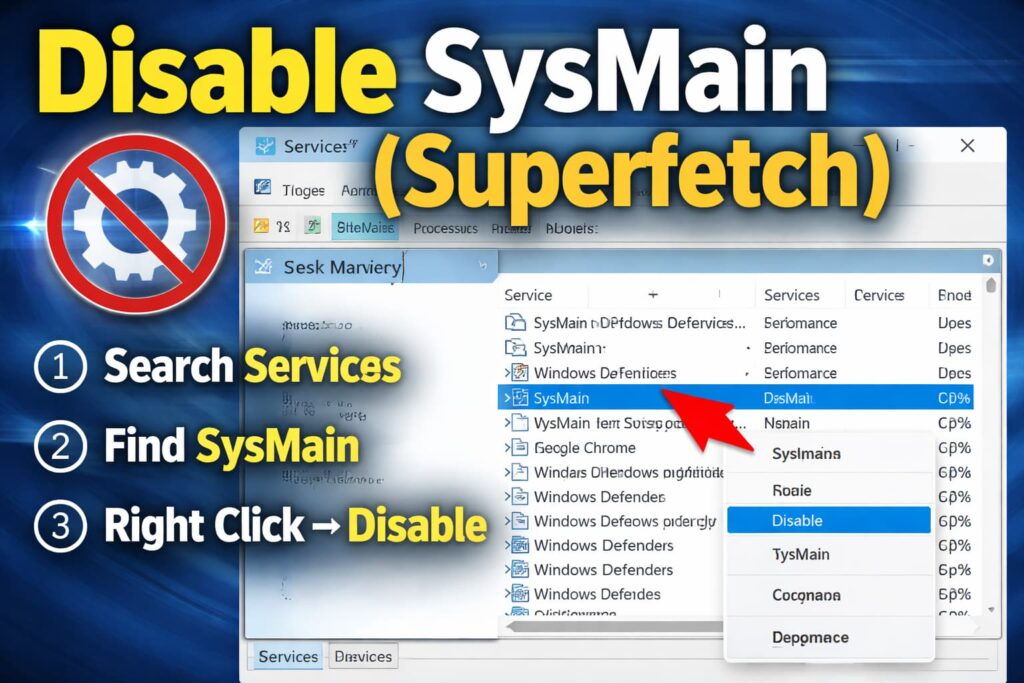
This was the main fix for me.
Steps:
- Press Win + R
- Type
services.mscand press Enter - Find SysMain
- Right-click → Stop
- Set Startup type to Disabled
- Restart PC
This reduces disk load significantly.
Method 3: Disable Windows Search Temporarily
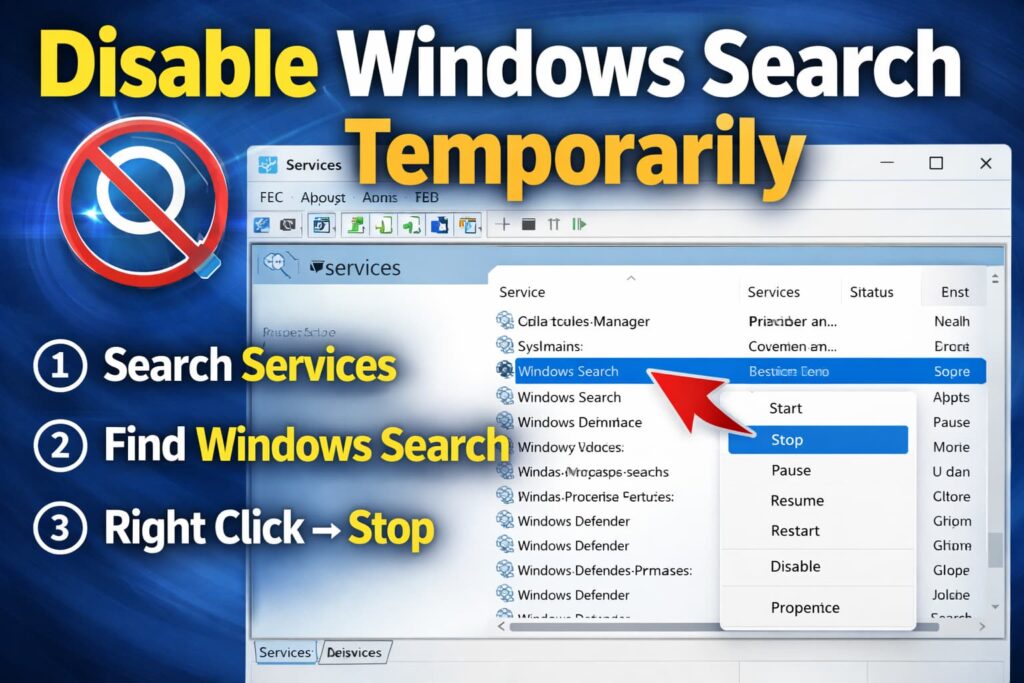
Indexing can overload the disk.
Steps:
- Open services.msc
- Find Windows Search
- Stop the service
- Restart PC
This improves responsiveness immediately.
Method 4: Check Disk Usage in Task Manager
Identify the real culprit.
Steps:
- Open Task Manager
- Sort by Disk
- Note apps using high disk
Uninstall or disable unnecessary apps.
Method 5: Run Disk Check
Fix disk-related errors.
Steps:
- Open Command Prompt as admin
- Type:
chkdsk /f - Restart PC when prompted
This repairs disk errors.
Method 6: Scan for Malware
Malware often causes high disk usage.
- Open Windows Security
- Run a Full Scan
Avoid third-party cleaners.
Method 7: Upgrade HDD to SSD (Best Fix)
If your system uses an HDD:
- 100% disk usage is very common
- SSD upgrade solves this permanently
This is the most effective long-term solution.
Why Disk Usage Drops After Some Time
After startup:
- Services finish loading
- Background tasks stop
- Disk pressure reduces
Reducing startup load prevents this spike.
What You Should Avoid
- Installing “PC booster” software
- Disabling random system services
- Ignoring disk health
- Running multiple antivirus tools
These make the problem worse.
FAQs
Is 100% disk usage harmful?
Yes, it slows the system but doesn’t usually damage hardware.
Does Windows Update cause this?
Yes, temporarily.
Will reinstalling Windows fix it?
Yes, but SSD upgrade is better.
Is this issue common on HDD?
Very common.
Final Thoughts
If your Windows PC shows 100% disk usage, the issue is usually caused by background services or HDD limitations—not a faulty system.
From my experience, disabling SysMain and Windows Search reduced disk usage immediately. For long-term improvement, switching to an SSD makes Windows feel completely new.

Vaishnav Singh is the founder and primary author of TechHary.com. Based in Mumbai, he brings hands-on professional experience to his writing, having worked extensively as a Windows expert within the IT industry. His practical background in solving complex technical issues fuels his passion for creating clear, helpful, and relevant content. At TechHary.com, Vaishnav dedicates himself to publishing in-depth articles, guides, and insights aimed at demystifying technology for enthusiasts and professionals alike. His mission is to build a trusted resource where readers can find reliable information to navigate the ever-evolving tech landscape.