
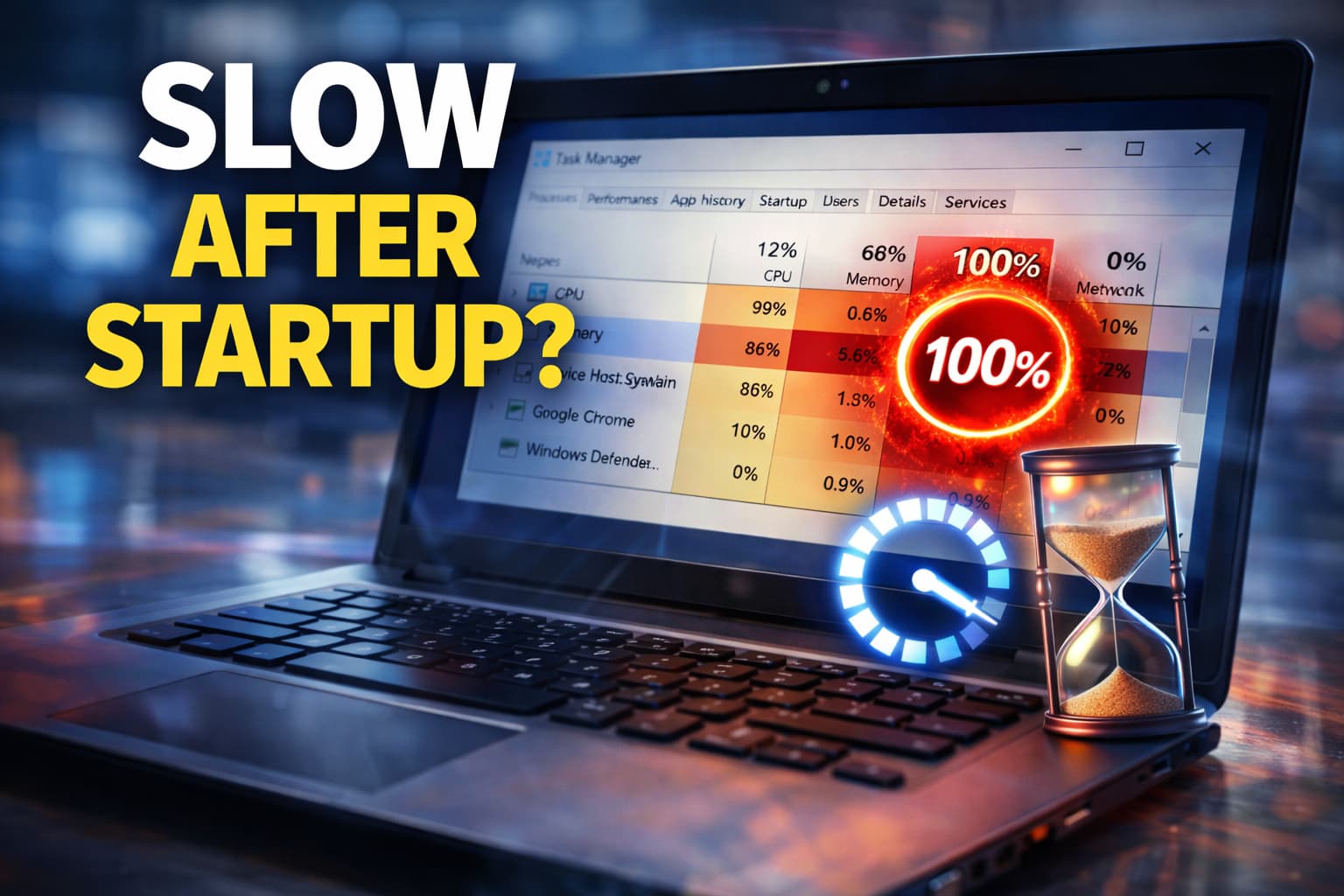
As a result of a recent phone call from my friend, he has been experiencing problems with his Windows Laptop being Slow After Startup at the workplace where he works. Here is an article that describes what I told him to do. Here is my experience-based article about how I resolved the problem of a Windows Laptop being Slow After Startup.
If your Windows laptop becomes very slow after startup, takes a long time to become usable, or freezes for a few minutes after booting, you’re not alone. This is one of the most common Windows problems and is usually caused by startup apps, background services, or disk usage—not a weak laptop.
I personally faced this issue on a Windows laptop where everything felt fine after 10–15 minutes, but right after startup the system was almost unusable. After checking startup programs and disk activity, I was able to fix the problem without reinstalling Windows.
In this article, I’ll explain why Windows laptops are slow after startup and share practical fixes that actually work.
How This Problem Usually Appears
You may notice:
- Laptop boots, but apps open very slowly
- Mouse or keyboard lags after startup
- Disk usage shows 100% in Task Manager
- Fan runs loudly right after boot
- System becomes normal after some time
These symptoms usually indicate startup overload or background processes.
Common Reasons Windows Is Slow After Startup
1. Too Many Startup Programs
Apps launching automatically overload the system.
2. High Disk Usage by System Processes
Windows services may consume disk heavily at startup.
3. Background Updates and Indexing
Windows runs updates and indexing after boot.
4. Antivirus Full Scan at Startup
Security software may scan files immediately.
5. Low RAM or Slow HDD
Systems with HDDs struggle more at startup.
Fixes That Actually Work
Method 1: Disable Unnecessary Startup Programs (Most Important)
This was the biggest fix for me.
Steps:
- Press Ctrl + Shift + Esc
- Open Startup tab
- Disable apps you don’t need at startup
- Restart the laptop
This instantly improves startup performance.
Method 2: Restart Windows Explorer After Boot
This refreshes the desktop environment.
Steps:
- Open Task Manager
- Right-click Windows Explorer
- Click Restart
This helps if the system feels stuck after login.
Method 3: Check Disk Usage in Task Manager
Identify what’s slowing the system.
Steps:
- Open Task Manager → Processes
- Sort by Disk
- Identify apps using high disk
Uninstall or disable unnecessary heavy apps.
Method 4: Disable Background Apps
Background apps consume resources silently.
Steps:
- Go to Settings → Apps
- Disable background apps you don’t use
- Restart the system
This reduces startup load.
Method 5: Pause Windows Updates Temporarily
Updates can slow startup.
Steps:
- Go to Settings → Windows Update
- Pause updates temporarily
- Restart PC
Do not keep updates paused permanently.
Method 6: Scan for Malware
Malware causes startup slowdown.
- Use Windows Security
- Run a Full Scan
- Remove detected threats
Avoid third-party “PC booster” tools.
Method 7: Upgrade to SSD (Best Long-Term Fix)
If your laptop uses an HDD:
- Startup will always be slower
- Upgrading to SSD makes a huge difference
This is the single biggest hardware improvement.
Why Windows Feels Normal After Some Time
This happens because:
- Startup apps finish loading
- Background services complete tasks
- Disk usage drops
Reducing startup load fixes the delay.
What You Should Avoid
- Installing PC booster apps
- Disabling random Windows services
- Ignoring disk usage issues
- Keeping unnecessary apps at startup
These worsen performance.
FAQs
Is slow startup a virus?
Not always—startup apps are the main cause.
Does reinstalling Windows fix this?
Yes, but it’s rarely necessary.
Will adding RAM help?
Yes, but SSD upgrade helps more.
Should I disable antivirus?
No, just adjust scan settings.
Final Thoughts
If your Windows laptop is slow after startup, the issue is almost always caused by too many startup programs or high disk activity—not an old laptop.
From my experience, disabling unnecessary startup apps and checking disk usage fixed the problem immediately. Simple changes can make Windows feel fast again.

Vaishnav Singh is the founder and primary author of TechHary.com. Based in Mumbai, he brings hands-on professional experience to his writing, having worked extensively as a Windows expert within the IT industry. His practical background in solving complex technical issues fuels his passion for creating clear, helpful, and relevant content. At TechHary.com, Vaishnav dedicates himself to publishing in-depth articles, guides, and insights aimed at demystifying technology for enthusiasts and professionals alike. His mission is to build a trusted resource where readers can find reliable information to navigate the ever-evolving tech landscape.